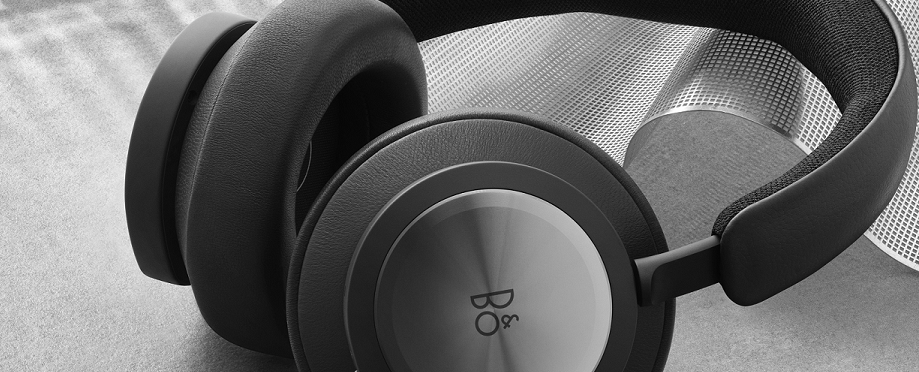
Yes, Beocom Portal support the USB-A or USB-C dongle called Beocom Link A/Beocom Link C. The first time you switch on your headphones and plug in the dongle, they will automatically connect to each other (both need to be in pairing mode, see Beocom Portal first-time setup. The dongle ensures a low latency connection, making the headphones perfect for calls. For Beocom Portal UC, both the light indicator on the headphones and the dongle are blue when connected. For Beocom Portal MS, both the light indicator on the headphones and the dongle are purple when connected.
You can also connect your Beocom Portal via 3.5 mm mini jack or the USB-C charging cable to potentially any device, no matter if it is for calls or watching movies or listening to music.
Using Line-in has its pros and cons. Latency is of course minimal when using Line-in, and low latency is highly relevant for calls. Just be aware that connecting a source to the 3.5 mm mini jack will drain the headphones’ battery. Therefore, the best wired connection solution for calls would be using USB-C as this allows you to charge your Beocom Portal during calls or while streaming. When connected through USB-C cable, both Bluetooth and dongle connection are always available.
Beocom Portal also support:
Microsoft Swift Pair, MFi and Google Fast Pair for easy connection to smartphones and tablets.
Note: For wired connection solution using USB-C cable, please remember to disable the wireless connection by pressing the Power/Bluetooth button on the right earcup for 2-5 seconds. Also note that the headphones need to be switched on when using Line-in due to the advanced DSP technology used in the headphones.

